GETTING STARTED WITH MONITOWN
Your budget,
explained step by step.
How much can you still spend? What bills are coming up? Where's your project at? Here's how to find this information in MoniTown, even if you've never tracked a budget before.
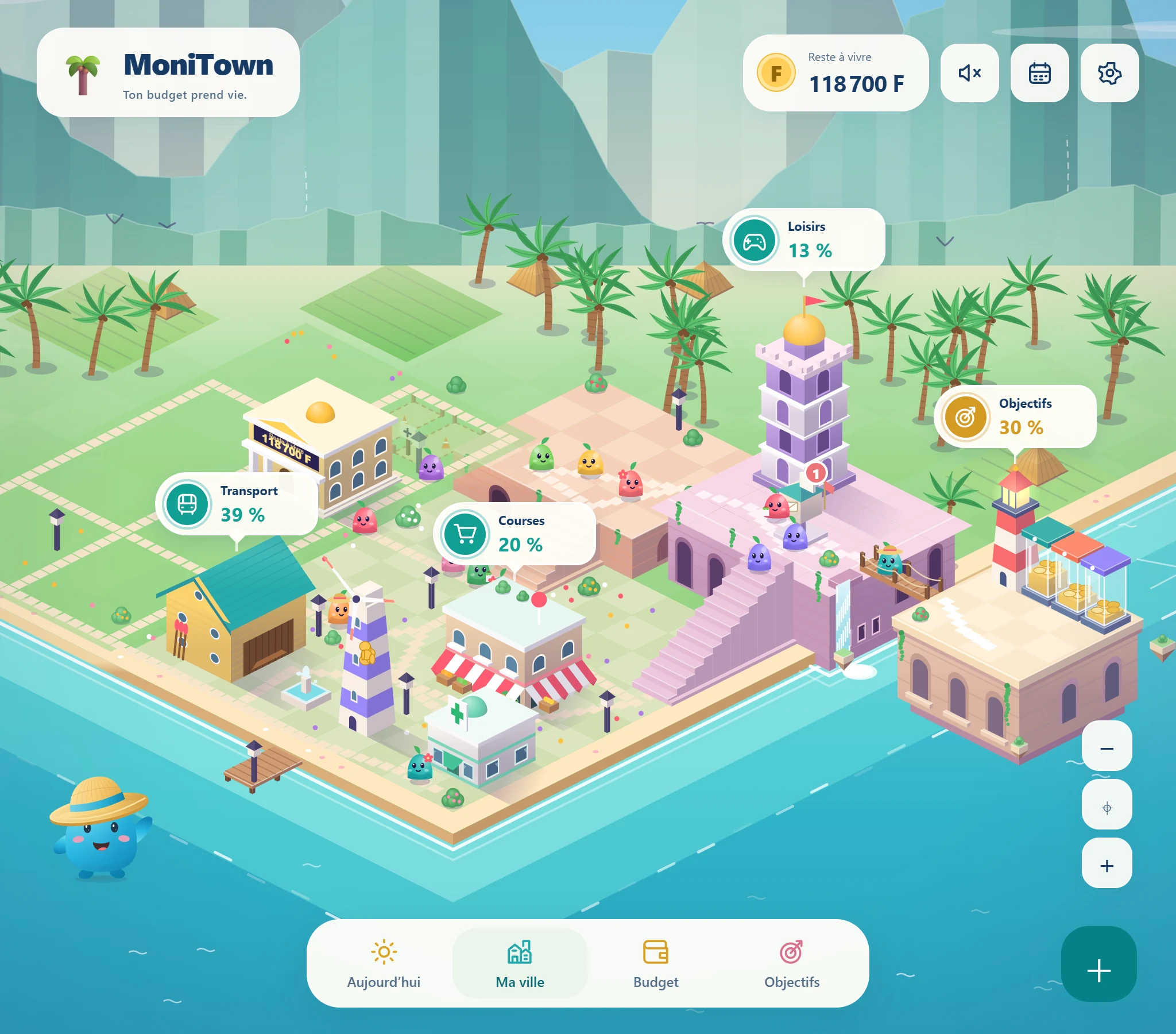
A budget is a way to plan and track money coming in and going out. In MoniTown, you also see it as a town: one building for groceries, another for transport, chests for your savings goals.
The pictures in this guide are real screenshots of the application, with a fictional budget, shown here in French — the English interface works exactly the same way. The amounts are examples, not sums you need to match. Here, "F" stands for CFP francs, also called Pacific francs or XPF.
01 · YOUR FIRST STEPS
Start with what you know.
Open MoniTown and choose the little character who'll go with you. You can start right away, with no account needed.
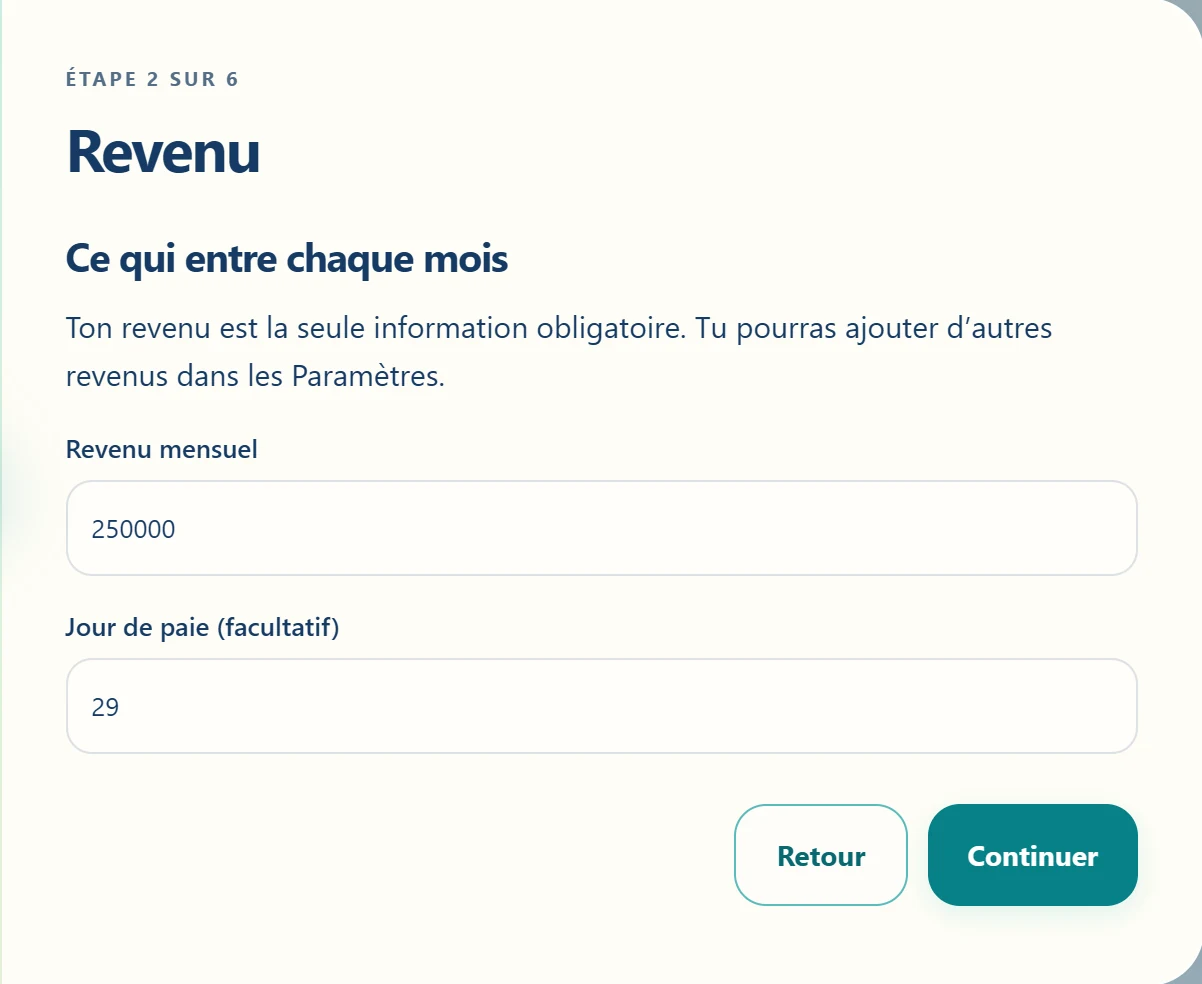
Enter your monthly income: the money you receive each month. If you know your usual payday, add that too. In the example, the person receives 250,000 F and expects their pay on the 29th.
The following screens let you note your bills, plan amounts per building, and choose a sum to set aside. You can leave the optional information blank and fill it in later in Settings.
02 · THE BUILDINGS
A building groups expenses of the same kind.
Food purchases go into Groceries, fuel into Transport, outings into Leisure. This is what the app calls a "category".
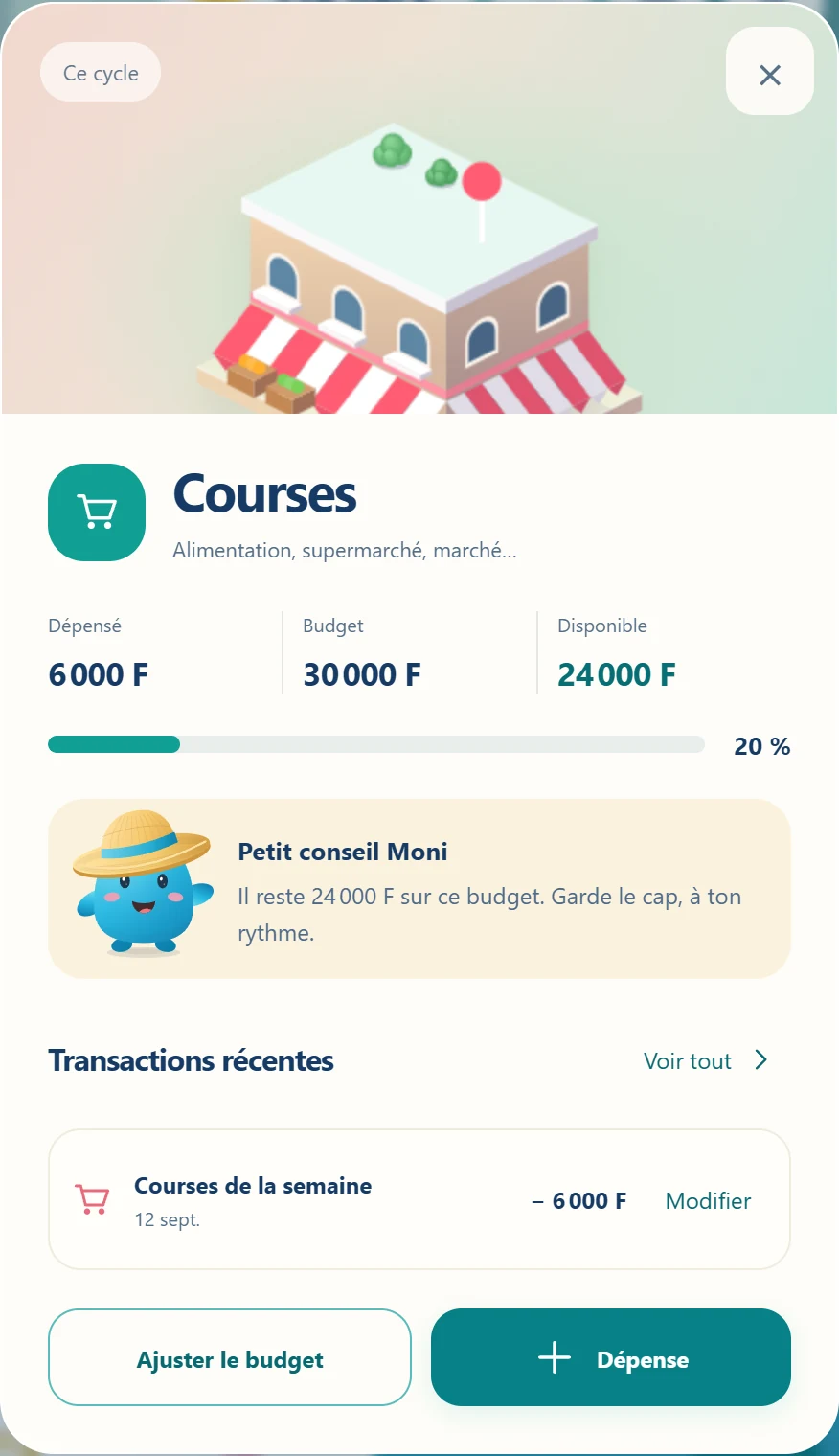
You can choose a planned budget: the amount you want to dedicate to this building until the next payday. The building grows as you record expenses.
- Planned budget for groceries
- 30,000 F
- Purchases already recorded
- 6,000 F
- Still available in this budget
- 24,000 F
The bar shows 20%: you've used a fifth of the planned amount. Tap the building in My town, or its row in Budget, to find these numbers and your latest purchases.
The Adjust the budget button lets you change the planned amount. Setting this amount doesn't record an expense: only your entered purchases count as expenses.
03 · EVERYDAY PURCHASES
Just paid for something? Note it here.
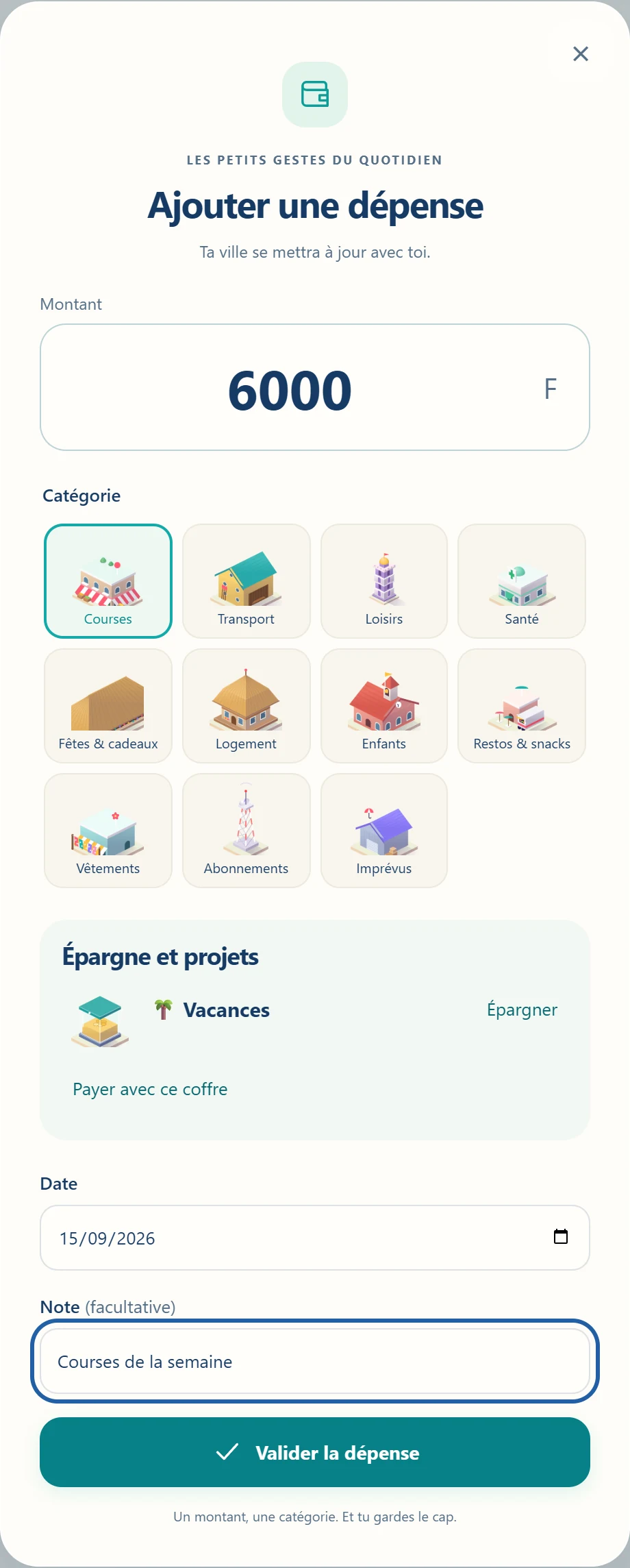
An expense is simply money you've spent: groceries, fuel, a meal, or a doctor's visit. You can note it with the + button, or with Expense in Today.
- Enter the amount paid. For example, 6,000 F.
- Choose the relevant building. For food purchases, tap Groceries.
- Check the date. A note, like "Weekly groceries", will help you find the purchase later.
- Tap Confirm the expense. The amount shows up in the building and your amount left to live on is updated.
Made a mistake? Open the building's card and tap Edit next to the purchase. You can fix its information or delete it after confirming.
04 · UNPLANNED EXPENSES
No planned budget? You can still note the expense.
Didn't plan for a trip to the pharmacy or a gift? You don't need to decide on an amount ahead of time to record this purchase.
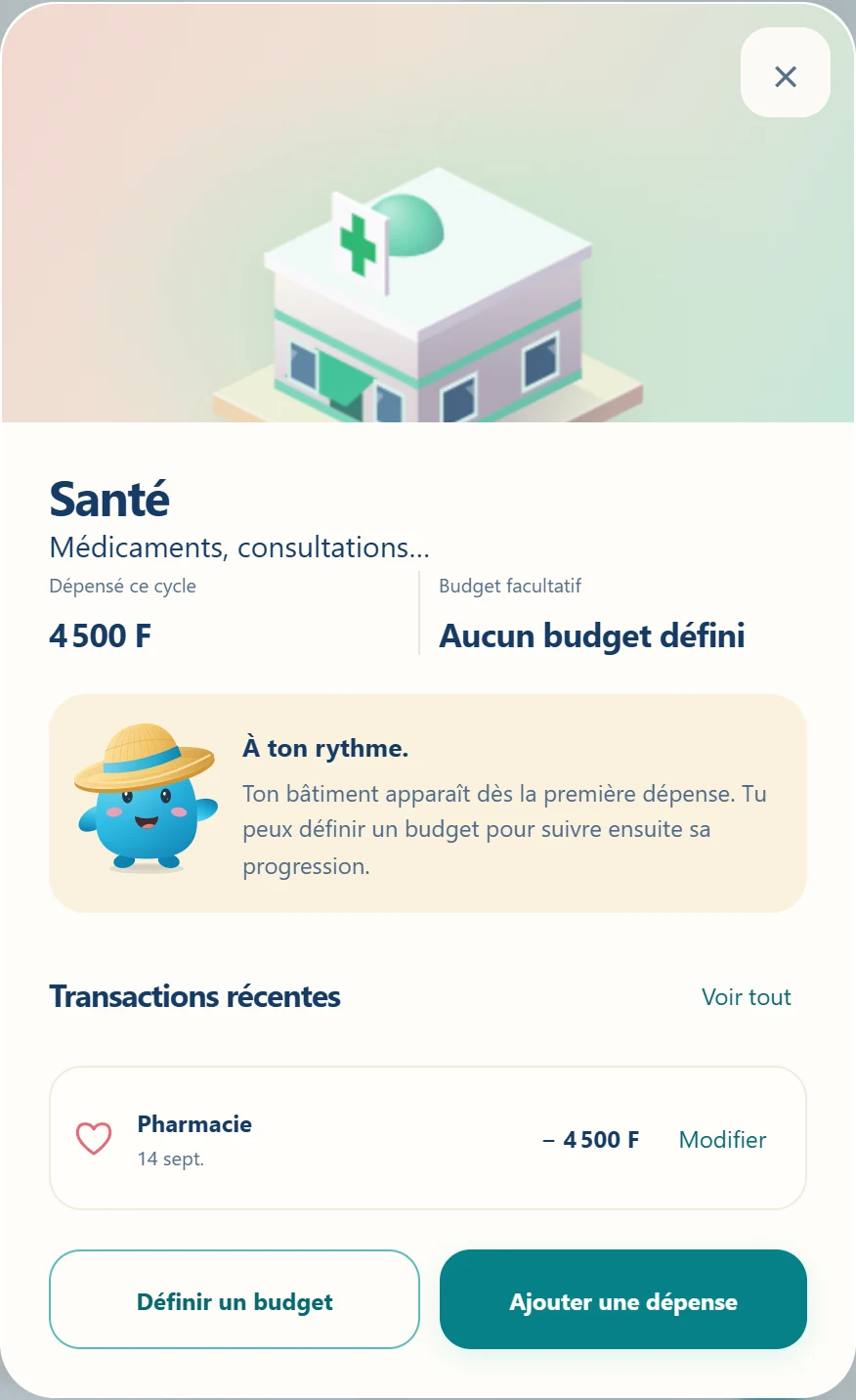
Tap +, enter the sum and choose the building, for example Health. In this screenshot, 4,500 F at the pharmacy are recorded even though no budget has been set.
The building appears from the first expense. Without a planned budget, MoniTown shows the total spent, with no over-budget percentage. You can then tap Set a budget if you want to give yourself a benchmark.
05 · FROM ONE PAYDAY TO THE NEXT
Your month can start on your payday.
The cycle is the period during which you track your budget. It doesn't necessarily start on the 1st of the month. If your pay is expected on the 29th, the planned period runs from the 29th to the 28th of the following month.
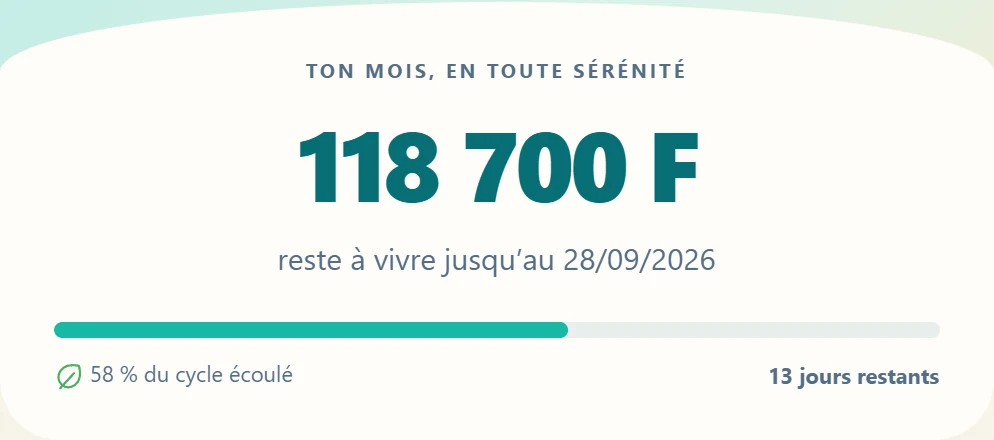
In Today, your amount left to live on shows the money still available based on what you've entered. MoniTown starts from your income, sets aside your fixed bills, then accounts for your expenses and the money already set aside.
The date under the amount shows how long that sum needs to last you. Here, the app shows 118,700 F until September 28.
When your next pay is expected, MoniTown asks you to confirm you've received it before starting a new cycle. If it hasn't arrived yet, you can wait to confirm.
06 · RECURRING BILLS
Find the dates for rent, internet and other bills.
Fixed bills are payments that recur regularly: rent, electricity, internet, subscriptions… In Settings, enter their name, the planned amount, and the usual day of payment.
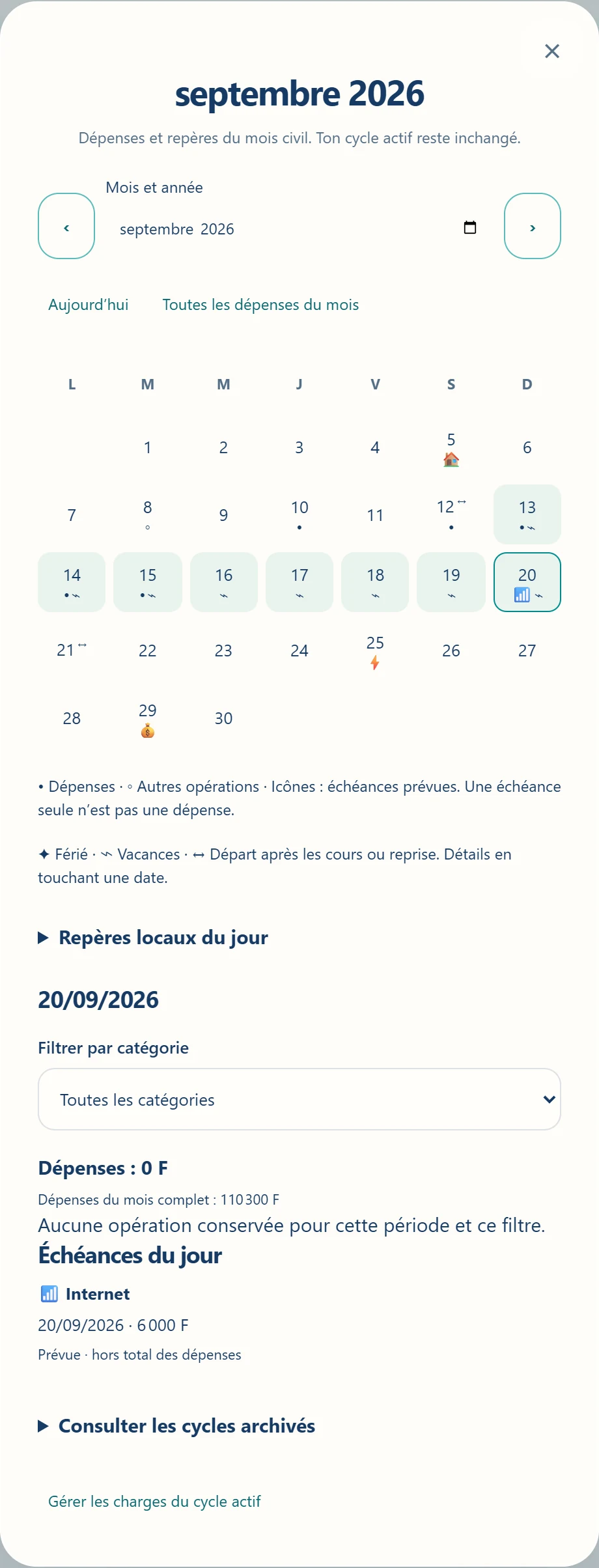
The calendar shows them with small icons. Tap the one in Today, or the calendar icon at the top of the app, to open it in full.
In this example, the internet bill is due on September 20. Tapping the 20th shows its name and amount: 6,000 F.
Bill paid? Confirm it.
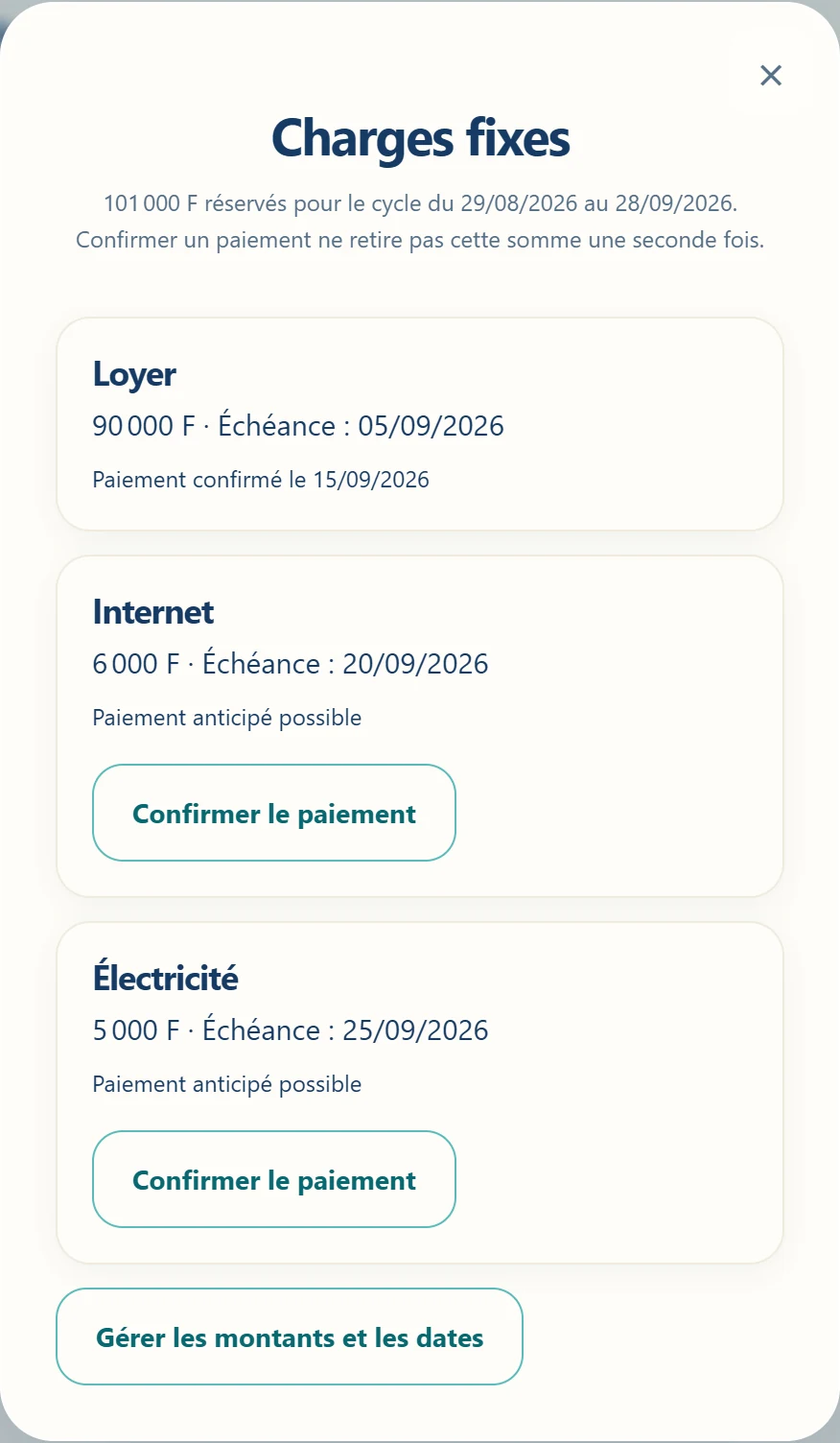
In the calendar, tap Manage the active cycle's bills. Find the bill, then choose Confirm the payment. You can do this even before the planned date.
The bill's amount is already reserved in your budget. This confirmation marks the bill as paid without taking the amount out a second time from your amount left to live on.
MoniTown doesn't pay the bill for you: here, you're confirming a payment you made yourself.
07 · MONEY SET ASIDE
A chest for every goal.
Saving means keeping money for later: a trip, equipment, or a cushion for the unexpected. In MoniTown, every goal can have its own chest.
- Open Goals and tap Create a goal.
- Give it a name and the amount you want to reach.
- When you set money aside, use Save or the goal's + to note the sum.
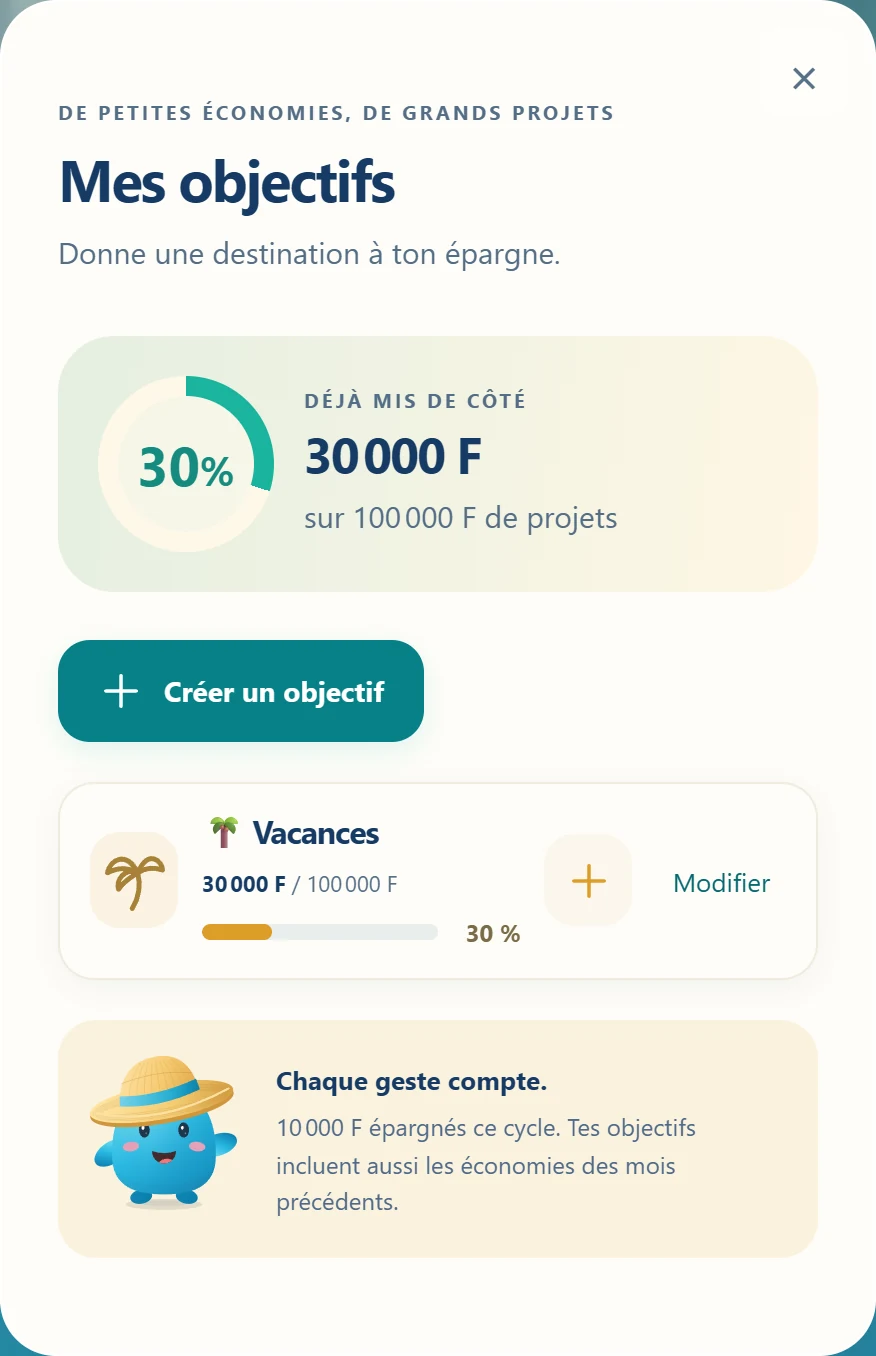
In the example, the Vacation goal has 30,000 F out of 100,000 F, or 30% of the target. This sum can include savings from several months.
Money added to the chest is taken out of your amount left to live on within the app. When you use these savings, choose Pay with this chest in the + button's window. Your amount left to live on won't be charged a second time.
To change the name, the target amount, or delete the goal, tap Edit next to its name.
08 · WHEN YOU SPEND MORE THAN PLANNED
Going over budget helps you see the gap.
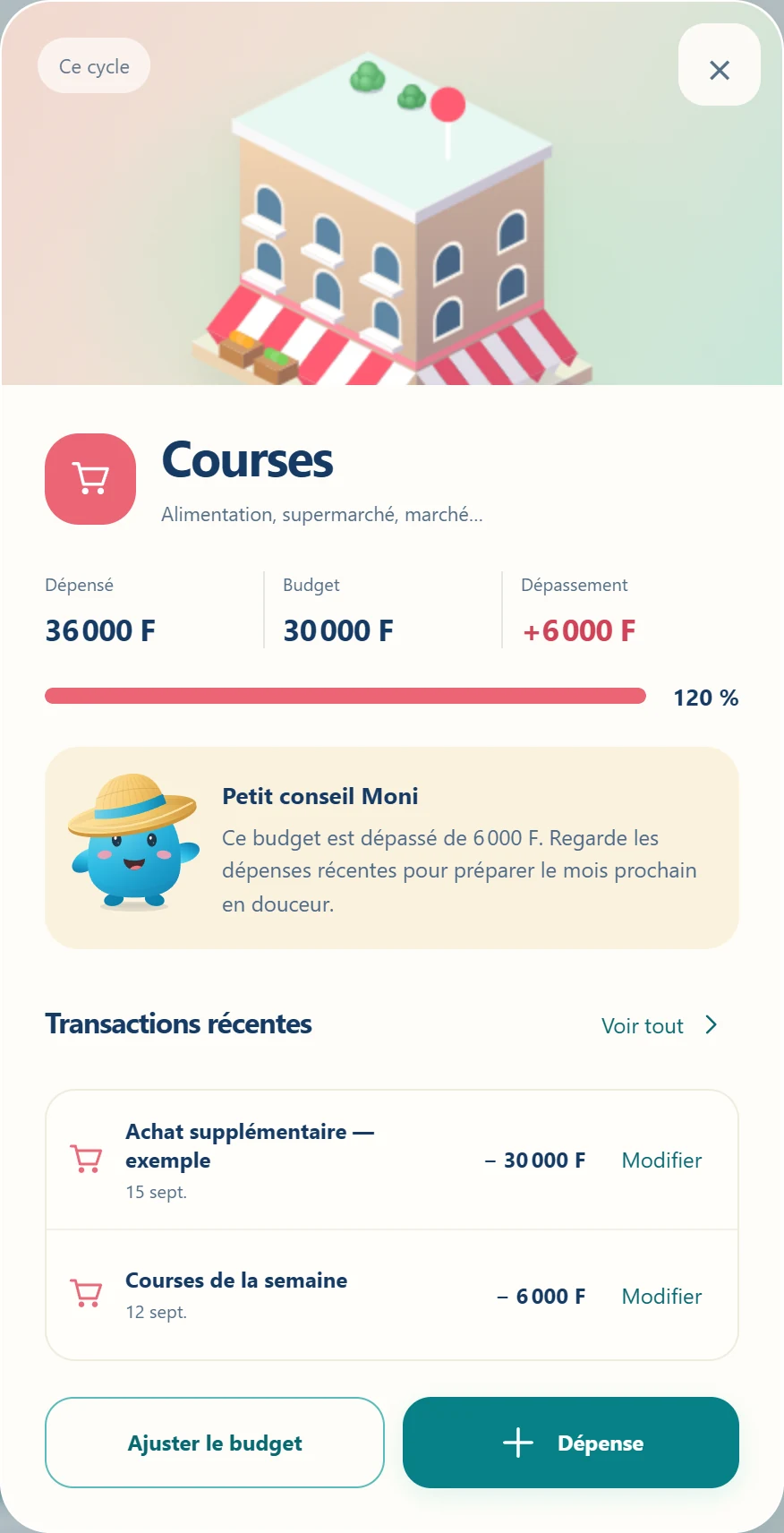
In this other example, groceries ended up costing 36,000 F against a planned budget of 30,000 F. The gap is 6,000 F and the card shows 120%.
You can keep noting your purchases. Look at the latest transactions to understand what changed. If the planned amount no longer matches your situation, you can adjust it with Adjust the budget.
Changing the budget doesn't make purchases already recorded disappear. It only changes the benchmark you compare your expenses to. There's no penalty within the app.
09 · ACCOUNT AND CONNECTION
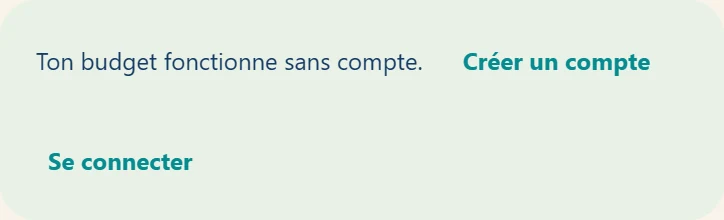
You can start for free, with no account.
The buildings, the town and the goals are usable with no subscription and no ads. Online backup and the household's shared budget are also included if you choose to create an account. MoniTown is a personal project that keeps evolving.
Without an account, your budget stays on this device. After a first load with an internet connection, you can keep checking and filling in your budget offline. Keep a copy of your data before switching phones or clearing your browser's data.
With an account, online features turn on. Syncing starts as soon as you sign in (you can pause it in Settings), and online backup happens on request; both let you find your budget on another device. These exchanges require an internet connection. To also carry your full archives, keep a backup file.
10 · ON YOUR PHONE OR TABLET
Add MoniTown to your home screen.
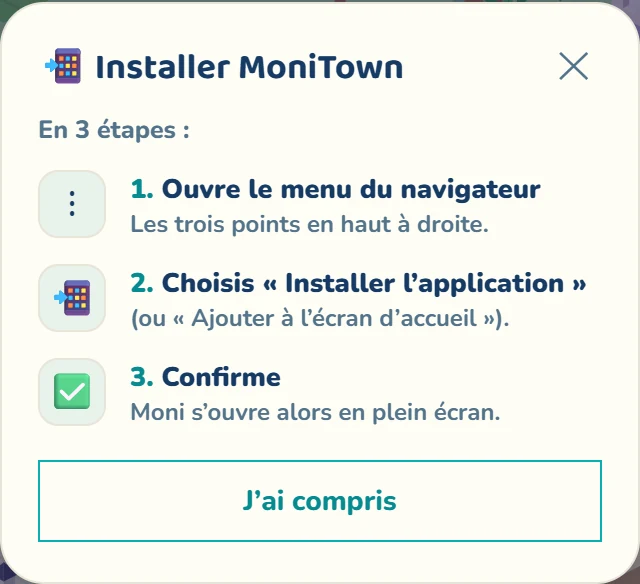
You can open MoniTown like an app, from an icon on your device. Start by opening app.monitown.com in your browser.
On Android with Chrome: open the three-dot menu and look for the install option. Depending on the version, it may be under "Install app" or "Add to Home screen". Then follow the on-screen instructions. Chrome help.
On iPhone or iPad with Safari: open the share menu, then choose "Add to Home Screen". If the "Open as Web App" option appears, turn it on, then tap "Add". Apple help.
You'll find install help in MoniTown's Settings, with the Install button. Prefer to stay in the browser? You can keep using it that way too.
11 · KEEPING A COPY
Save a backup file.
A backup is a copy of your budget at a given moment. It can help if you switch devices or need to recover your data.
- Open Settings with the gear icon.
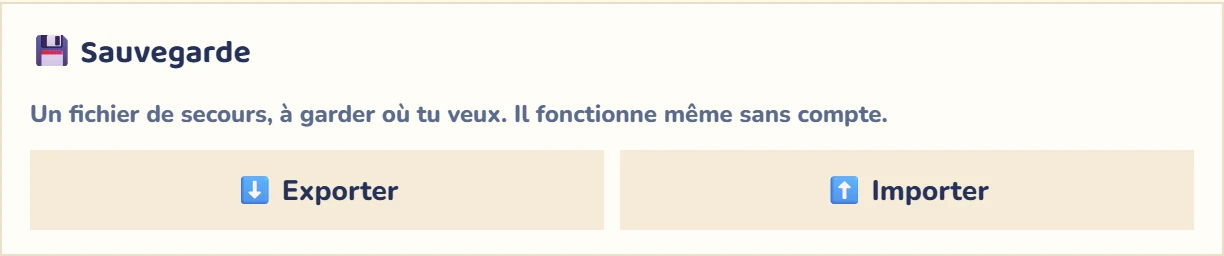
- In Backup, tap Export. A file containing your budget is downloaded.
- Keep it somewhere private where you'll be able to find it again, ideally also outside your phone.
To recover this copy, open MoniTown on the device you want, then choose Import in the same part of settings and select your file. Read the confirmation before replacing data already present.
Check that your amounts, purchases and goals have come back correctly before erasing the old budget. The file contains your personal information: avoid sharing it publicly.
You'll find the details of storage and online exchanges in the privacy policy.
ONE FIRST STEP IS ENOUGH
Start with your next purchase.
Note its amount, choose its building, and look at the information that appears. You can fill in the rest at your own pace.
Open MoniTown